
System Settings
The article provides a detailed guide on configuring HUSKYLENS 2 System Settings, including WiFi setup, screen brightness adjustments, protocol types, LED fill lights, SD card tools, and factory reset. It helps users optimize device parameters effectively for improved functionality and user experience.
System Settings
In Huskylens 2, System Settings function allows you to set various system-related parameters in detail. As shown in the figure below, the secondary menu of System Settings contains a total of 10 specific parameters that can be configured.

Device Information
Device Information displays detailed data including the current system version, hardware version, memory, hard disk capacity, device code, and CPU temperature.
WiFi
The HUSKYLENS 2 WiFi module requires separate purchase and installation. To purchase, please click HUSKYLENS 2 WiFi model. About how to install it, please refer to HUSKYLENS2 WiFi Module installation tutorial.
After the module has been successfully installed, please enter System Settings-WiFi

Turn on the WiFi switch. After a few seconds, a list of nearby scannable WiFi networks will appear, click Refresh to update the list.
When WiFi is turned off while active, it will take 30 seconds to turn back on. You cannot turn WiFi back on again within that 30-second period.

Tap to select the WiFi network you want to connect to, then enter the password. Once done, tap the checkmark in the bottom-right corner.
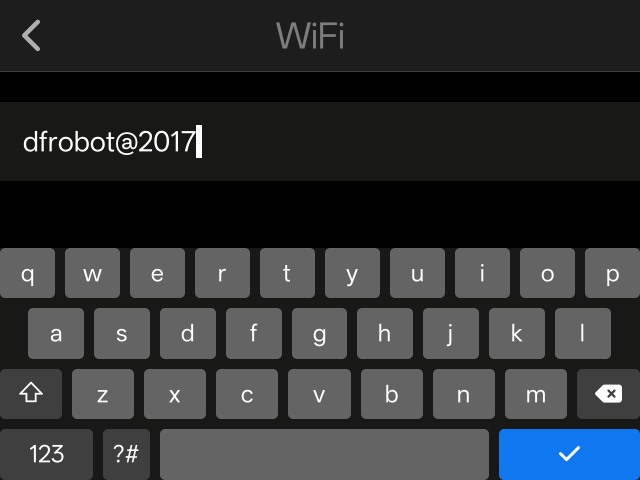
Waiting for WiFi connection. If the WiFi connection unsuccessful after 30 seconds, a pop-up alert will appear. You may choose to retry or cancel. Clicking Cancel allows you to reselect the network and re-enter the password.
Please carefully verify the password is correct and check if your network settings permit connections from unknown devices. If you confirm the password is correct and network settings are normal, move closer to the hotspot or router and try again.

The WiFi system automatically saves passwords for previously connected networks. When selecting a saved WiFi network to connect, you can connect directly without entering the password. Saved WiFi networks can be deleted.
Protocol Type
HUSKYLENS 2 supports two Serial protocols (9600, 115200 baud rates) and the I2C protocol. In the protocol type settings, you can select the protocol type, with I2C protocol as the factory default, and the I2C address is 0x50.

HUSKYLENS 2 has an indicator light at its UART/I2C interface position. The color of this indicator light lets you quickly identify the active protocol. When operating in I2C protocol, the light glows blue.For UART protocol, it turns green.

Screen Brightness
HUSKYLENS 2's screen brightness is factory default set to 70%. Click Screen Brightness, then slide the progress bar to adjust HUSKYLENS 2's screen brightness, ranging from 25% to 100%.

Menu Auto-Hide
HUSKYLENS 2 features an auto-hide menu function. The auto-hide duration is the period after selecting a visual recognition function until the upper and lower row menus automatically hide. For example, when using the Object Recognition function, set the auto-hide time to 5 seconds. After 5 seconds, the menus will disappear, and tapping the screen will make them reappear.

Under the menu auto-hide option, you can slide the progress bar to set the auto-hide delay for HUSKYLENS 2's menu, ranging from 1 to 30 seconds, with the factory default set to 5 seconds.

LED Brightness
HUSKYLENS 2 is equipped with two onboard LED fill lights; In the fill light menu, you can slide the progress bar to adjust the brightness, with the default setting being off.

Click the 'bulb' icon to quickly turn the fill light on or off. When you click the 'bulb' icon, the icon lights up, the fill light turns on, and the brightness automatically resets to the previously set value. If the brightness has never been set, the first click on the icon defaults to 80% brightness.

RGB Brightness
HUSKYLENS 2 features an onboard RGB indicator light. The factory default setting is green color with 0% brightness, meaning it is off. In the RGB Light menu, you can slide the progress bar to adjust brightness and also customize the light color.

Click the 'bulb' icon. The icon will light up, the RGB light turns on quickly, and the brightness and color will automatically revert to the last set state. If the settings have never been adjusted, the first click on the icon will default to 80% brightness and green color.

SD Card Tool
HUSKYLENS 2 has a TF Card Slot.You can insert the SD card into the slot of HUSKYLENS 2. In the SD Card Tool, you can choose to repair system files or format the SD card.

Factory Reset
Click 'Restore Factory Settings' to reset HUSKYLENS 2 to its factory state.

Language
HUSKYLENS 2 supports English, Simplified Chinese, and Traditional Chinese. On the Language page, you can select the desired language. After selection, the system will switch to the chosen language and automatically return to the menu page. Below is a schematic diagram illustrating the process of switching to Simplified Chinese.

Was this article helpful?